Spotify Premium can only be cancelled from your account page on the Spotify website. The Spotify mobile app and desktop app do not have a cancel button — both send you to the website to manage your plan. Below are the exact steps for every situation, based on Spotify’s official support documentation (verified July 2026).
Before you start: check who bills you
The right cancellation method depends on who charges you each month:
- Spotify directly (credit card, PayPal, etc.) — cancel on the Spotify website (steps below).
- Apple (App Store) — cancel in your iPhone/iPad subscription settings.
- Google Play — cancel in the Google Play Store.
- A partner company (your mobile carrier or internet provider) — cancel through that company.
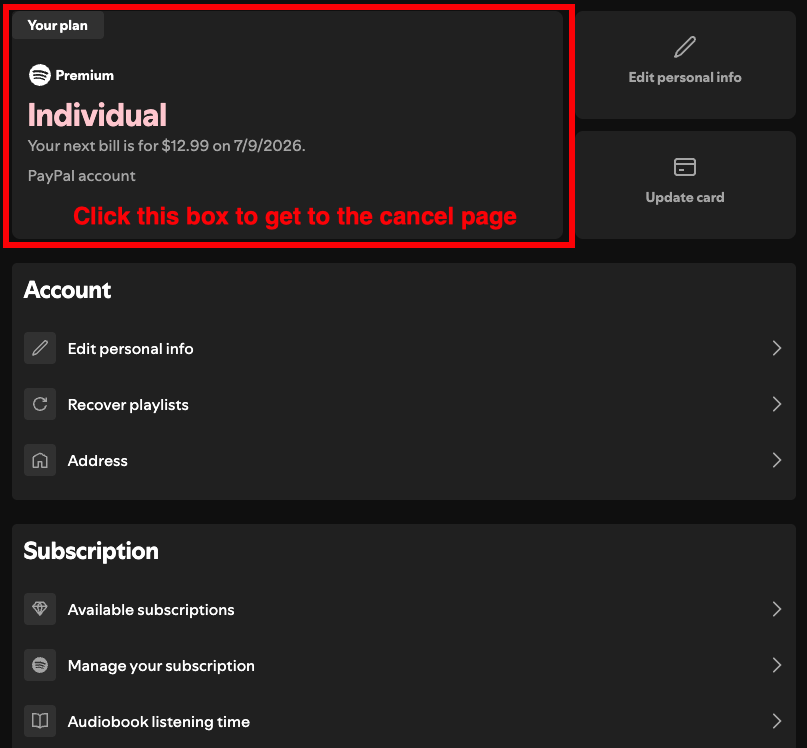
Not sure? Go to spotify.com/account and check the Payment section under your plan — it shows who handles your billing.
How to cancel on the Spotify website
This works in any browser, on a computer or a phone.
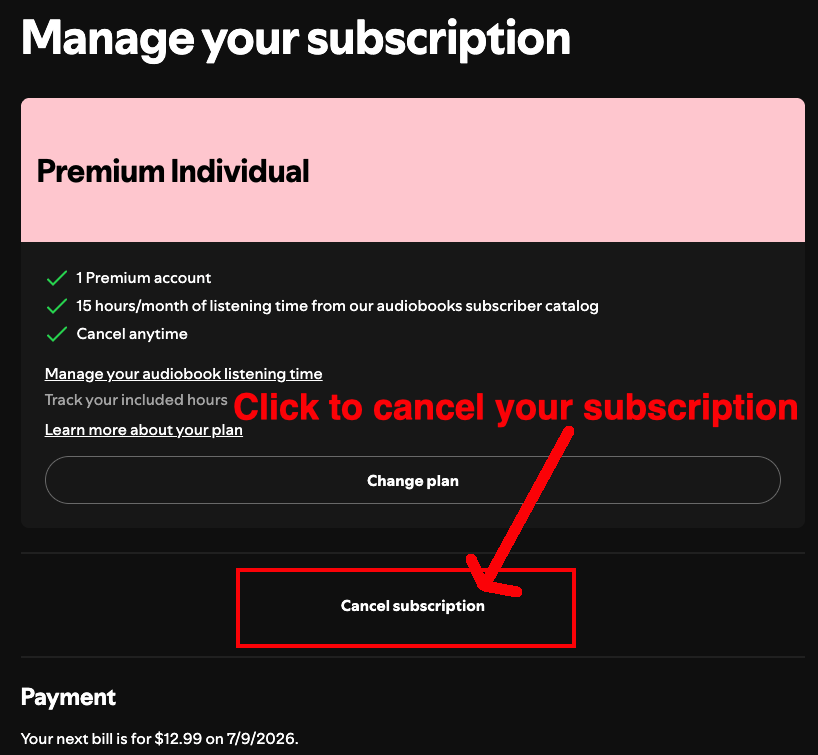
- Go to spotify.com/account/subscription/manage and log in if prompted.
- Under your plan, select Cancel subscription.
- Spotify will show one or more retention screens (offers to keep Premium or asking why you’re leaving). Keep confirming your choice on each screen.
- Continue until you see a confirmation message with the date your account switches to Spotify Free. If you don’t reach this message, the cancellation did not go through.
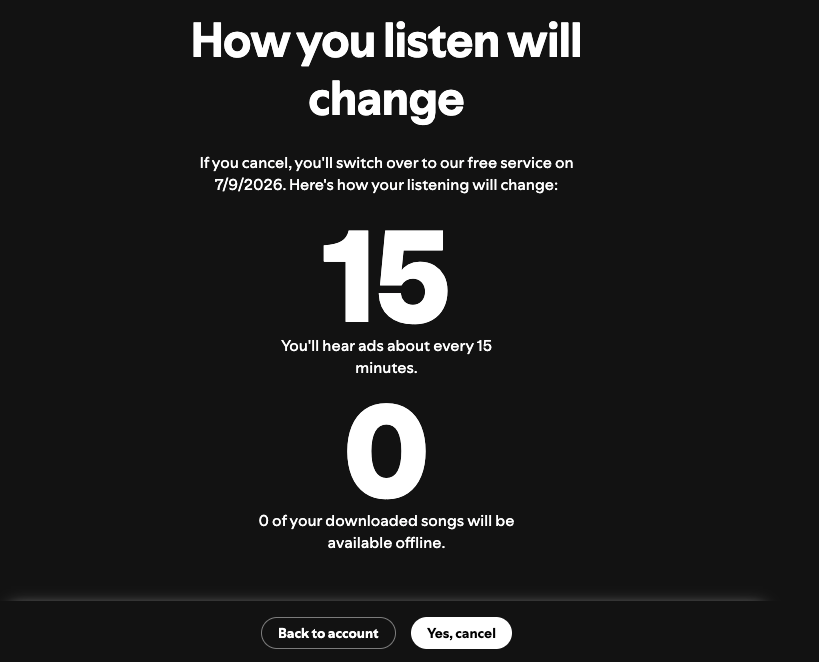
To verify it worked, return to your account page: it should show the date your account switches to Spotify Free instead of a next payment date.
From the mobile app (iPhone or Android)
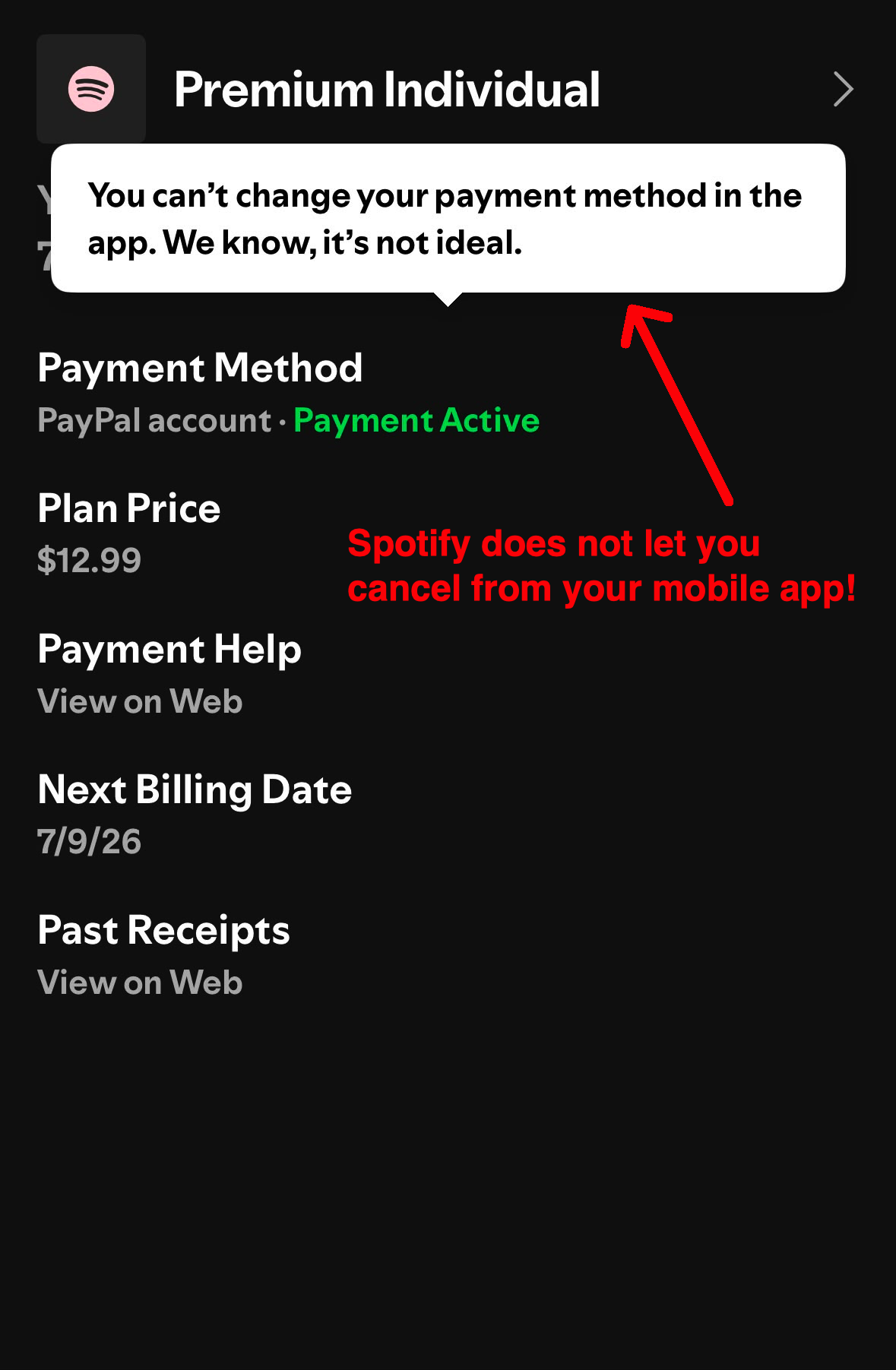
You can’t cancel inside the app itself, but you can reach the cancellation page from it:
- Open the Spotify app and tap your profile picture in the top-left corner.
- Tap Settings and privacy.
- Tap Account. This opens your Spotify account page in your phone’s web browser.
- Log in if asked, then follow the website steps above: Manage your plan → Cancel subscription → confirm.
From the desktop app (Windows or Mac)
- Open the Spotify desktop app and click your profile picture in the top-right corner.
- Click Account. Your account page opens in your default web browser.
- Follow the website steps above: Manage your plan → Cancel subscription → confirm.
If you subscribed through Apple
If Apple bills you (the charge appears as Apple/iTunes on your statement), cancel through your Apple ID:
- On your iPhone or iPad, open Settings.
- Tap your name, then Subscriptions.
- Tap Spotify, then Cancel Subscription.
If you subscribed through Google Play
- Open the Google Play Store app.
- Tap your profile icon, then Payments & subscriptions → Subscriptions.
- Select Spotify, then Cancel subscription.
If a partner company bills you
If your Premium came bundled with a mobile or internet provider, there’s no cancel option on your Spotify account page. Go to Manage your plan, check the Payment section for the partner’s contact link, and cancel through that company.
Family and Duo plans
If you’re the plan manager, the standard steps above cancel the whole plan — all members lose Premium at the next payment date. If you’re a plan member, those steps only remove your account from the plan; the plan itself keeps billing. Ask the plan manager to cancel it.
What happens after you cancel
- You keep Premium until the end of the billing period you already paid for, then your account switches to Spotify Free.
- Exception: cancelling during a zero-priced free trial ends Premium immediately, and the trial can’t be reactivated.
- You keep your playlists, saved music, and account. You can still listen free with ads.
- Cancelling Premium does not delete your account — that’s a separate process.
Alternatively, Spotify also accepts cancellation by completing this form and sending it to Spotify.